Skip to content
OnMSFT.com
  • Home
  • About
  • Contact
  • Windows
  • Surface
  • Xbox
  • How-To
  • OnPodcast
  • Edge
  • Teams
  • Gaming
Menu
  • Home
  • About
  • Contact
  • Windows
  • Surface
  • Xbox
  • How-To
  • OnPodcast
  • Edge
  • Teams
  • Gaming
  1. Home
  2. How-to
  3. How-To Holiday Guide: How to set up your new Surface device

How-To Holiday Guide: How to set up your new Surface device

James Walker James Walker
January 1, 2019
4 min read

\n

You’ve just received a brand new Microsoft Surface underneath your Christmas tree (or at least you’re hoping that’s what happens) and you’re ready to turn it on for the first time. In this guide, we’ll walk you through setting up your new Surface and point out the options you should take time to adjust.

\n

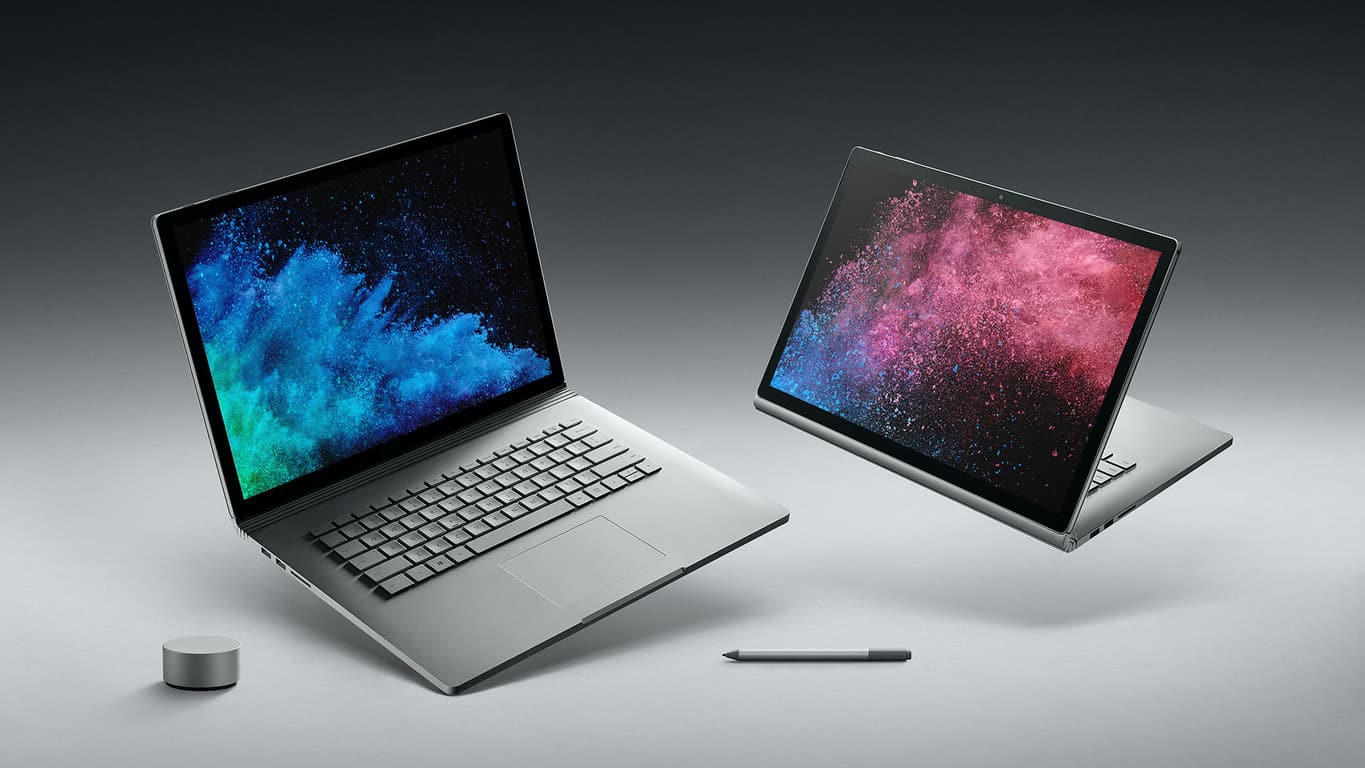
This guide is meant to be device-agnostic, so whether you’ve got a Surface Pro, Surface Laptop or Surface Book, you should find most of this advice remains relevant to you.

\n

With your Surface plugged in and ready to go, let’s get started with your new device.

\n

First steps

\n

You should follow the quick-start guide in the box to get your Surface hardware ready to use. This involves attaching the Type Cover for the Pro, or Clipboard on the Book, and connecting the power connector. Don’t try to run your Surface on battery power just yet – there might not be enough charge from the factory to get you through the setup procedure.

\n

Press the power button to start your Surface. This first boot may take a long time while the setup experience gets ready and your device performs first-run initialisation. After a couple of minutes, you’ll get to the Windows setup experience.

\n

At this point, we recommend jumping to our “Getting started with your new Windows 10 PC” guide which explains the different options presented on the setup screens. Come back here once you’ve finished!

\n

Updates

\n

Once setup is complete, the very first thing you should do is get updated. Microsoft releases Windows updates monthly with important quality and security fixes, so your device’s factory-installed Windows version could be a long way behind the latest release.

\n
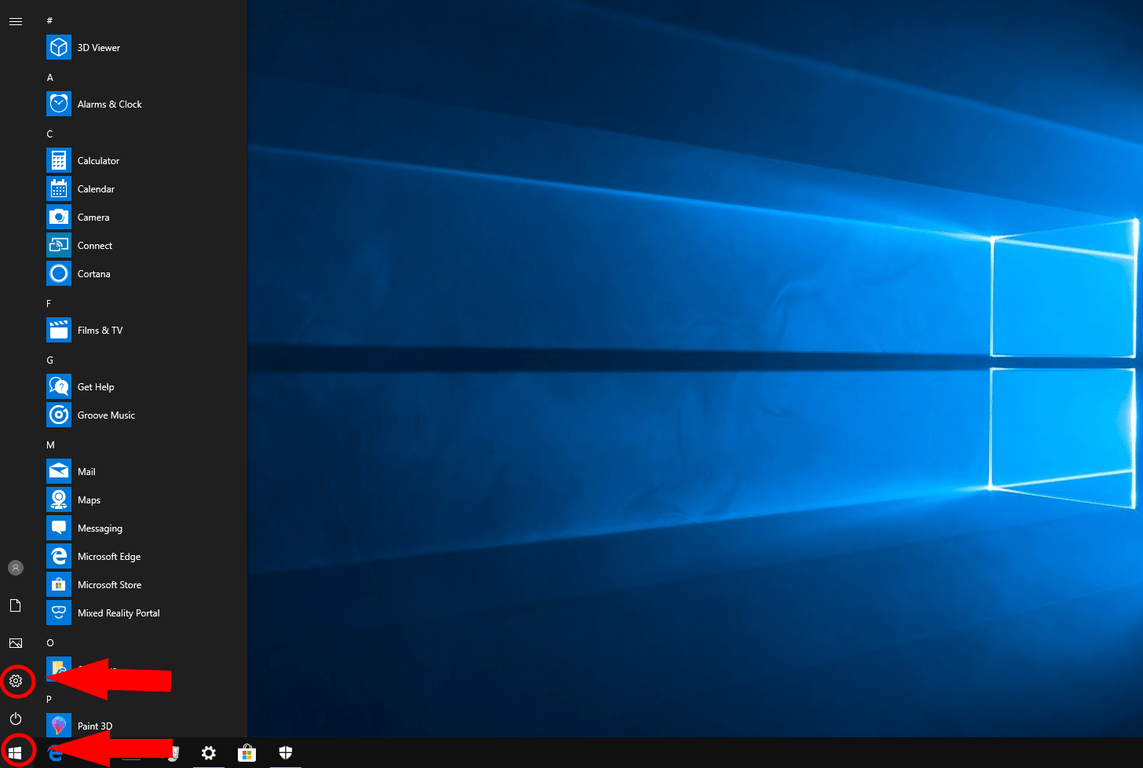
Windows 10 Settings link in Start menu screenshot

\n

Depending on how long ago your device was built, you may also need to update to the latest Windows “feature update.” These are released every six months and, as the name may imply, add additional features, capabilities and improvements to Windows 10.

\n

To get updating, open the Start menu by clicking the Windows logo icon in the bottom-left of the display. From here, click the small Settings cog icon on the left of the menu to open the Settings app. On the main menu, choose the “Update & security” category and then press the “Check for updates” button on the page that appears.

\n
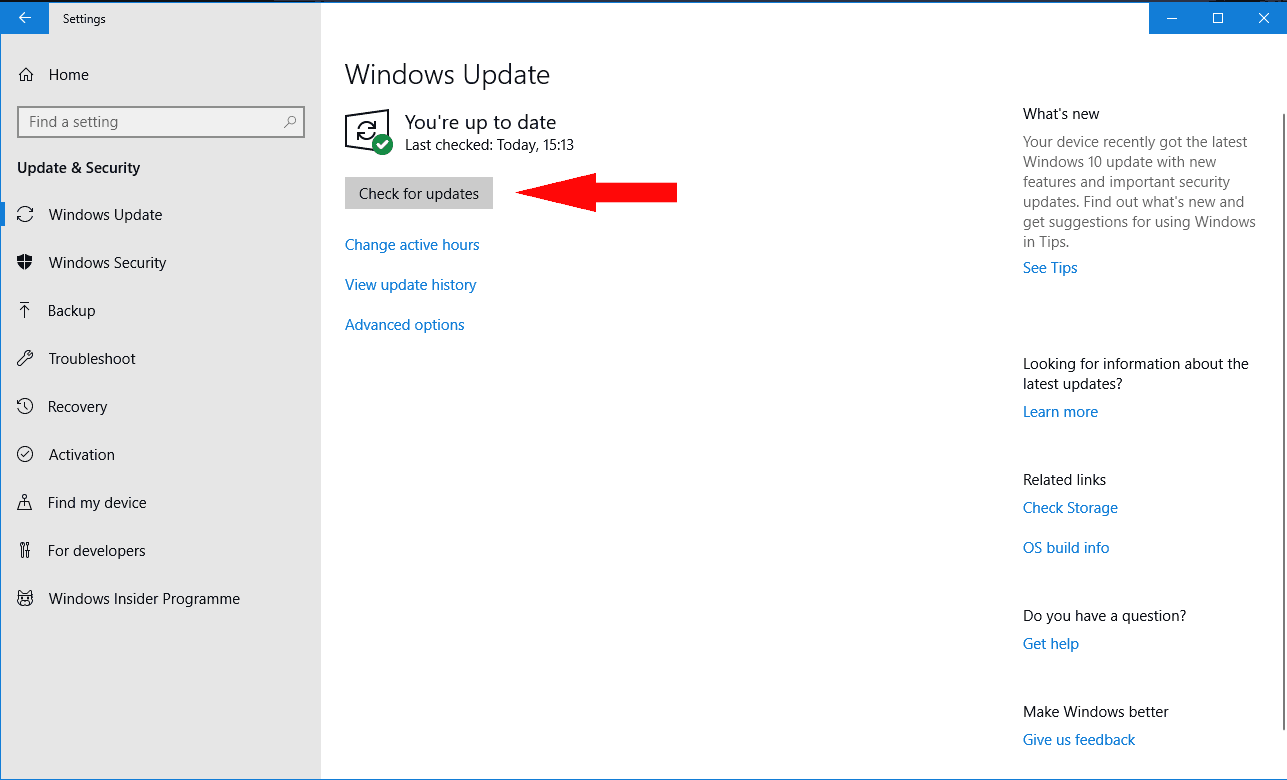
Check for updates button screenshot

\n

Here comes a warning – this process may take a long time to complete. Depending on the number and size of updates available, as well as your internet connection and device specifications, it could take hours to get everything installed. We recommend waiting it out so you’ve got a fully updated clean slate to work from once you start configuring your device.

\n

Firmware updates

\n

The update process described above will also download “firmware” updates specific to your Surface. You don’t need to do anything extra to get these updates, which include fixes for Surface internal hardware components.

\n

After rebooting your Surface, you may see an orange progress bar appear below the white Microsoft logo on the startup screen – this means a firmware update is installing. It should only take a minute or two, but it’s important you don’t turn off your device during the process. Any power loss could cause irreparable damage to the device.

\n

Getting acquainted

\n

With setup complete and updates installed, you’re ready to start exploring your new Surface. It’s up to you how you interact with the device – you can use mouse and keyboard (via the Type Cover/Clipboard on Pro and Book respectively), or the high-resolution 10-point touchscreen.

\n
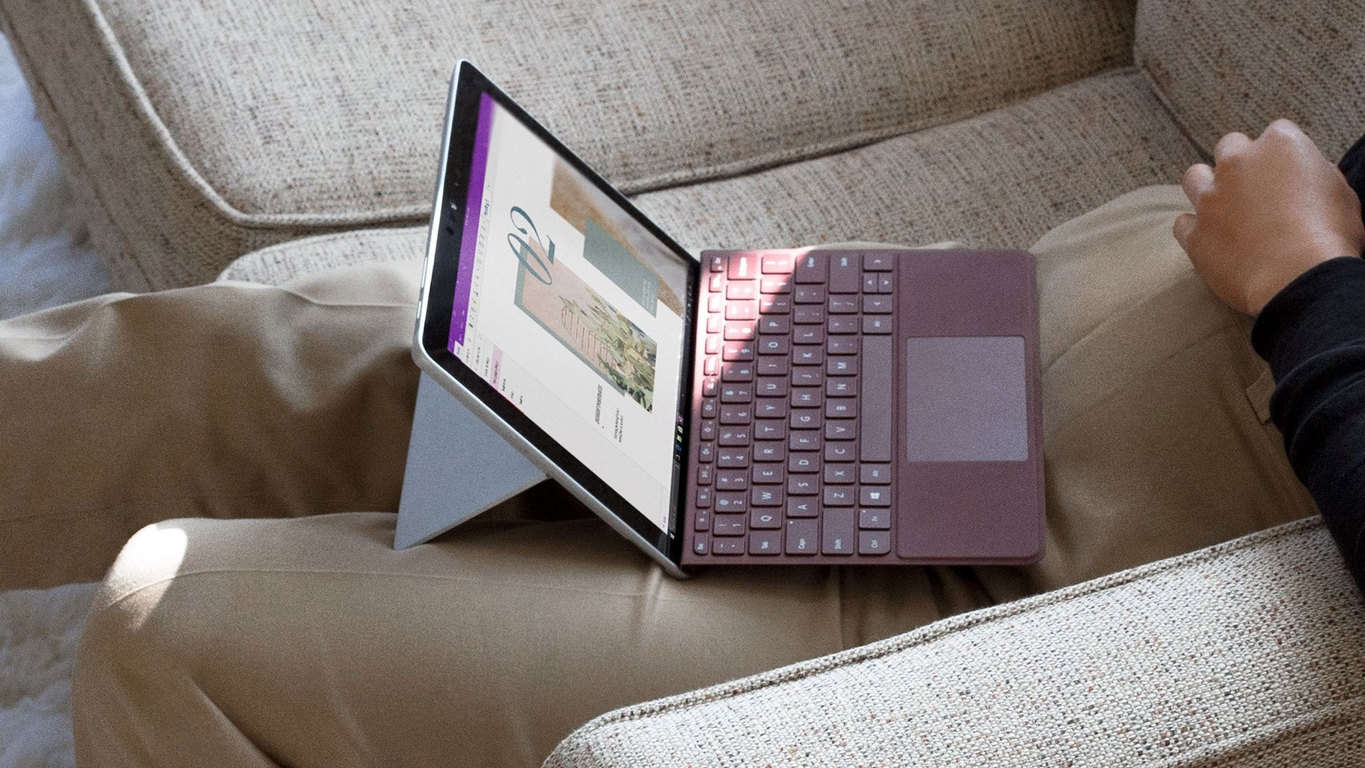
Microsoft Surface Go device and Type Cover

\n

With Surface Pro and Clipboard, you’re able to use the device as a tablet by removing the Type Cover/Clipboard. Windows 10 should automatically detect the change, and prompt you to switch to a dedicated Tablet Mode. This gives you a Start screen experience similar to that offered in Windows 8, making it easier to interact using touch alone.

\n

If you’ve got a Surface Pen, you can set it up now (if you didn’t already during setup) by following our separate guide “How to get started with Surface Pen.” It’s a simple one-time process; thereafter, you’ll be able to scribble a digital note by pressing the button on the end of the pen. Windows Ink Workspace will open with a blank canvas for you to add your thoughts and doodles to.

\n

Surface App

\n

You should find the Surface app is preinstalled on your device. You can open it from the Start menu (click the Windows logo in the bottom left) by scrolling down the apps list until you see its name.

\n
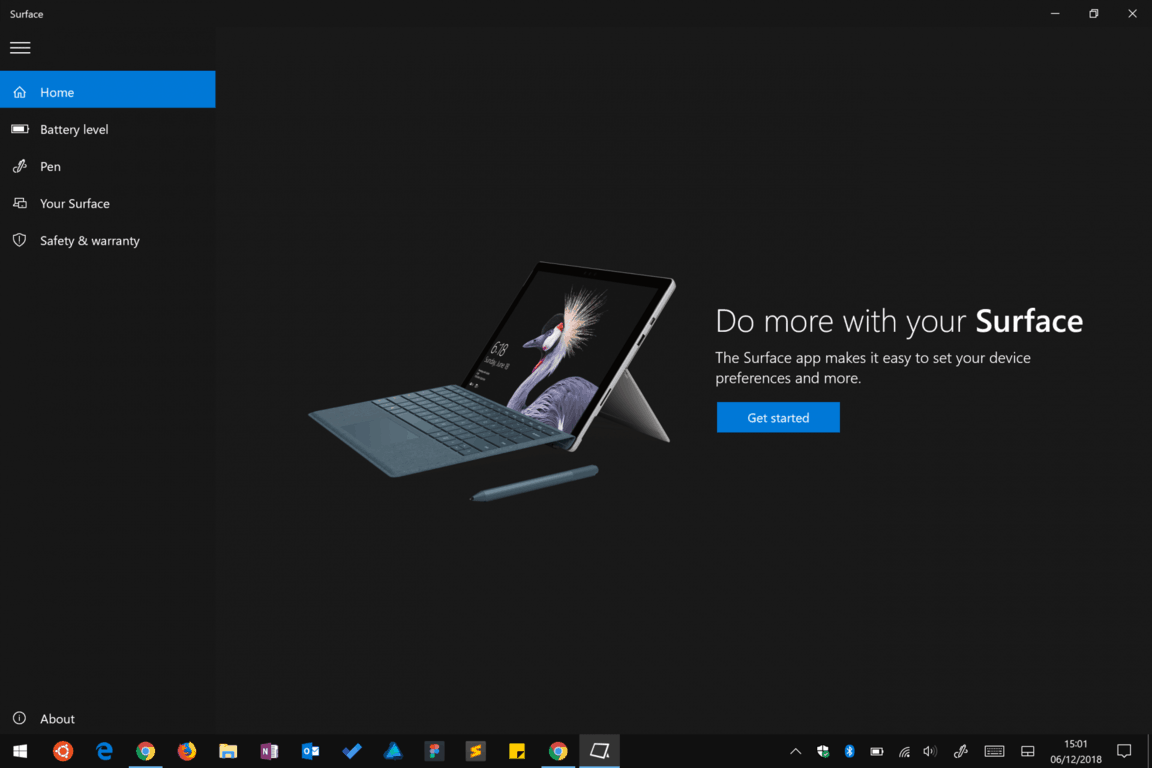
Surface app screenshot

\n

This app provides additional getting started guidance for your device, so it should be your first port of call if you need any help or you’re contacting Microsoft support. The app also lets you check the battery level of any connected Surface accessories and provides a testing ground for Surface Pen.

\n

Finally, you can view technical details about your Surface, register your device online and get details of any exclusive offers available to Surface owners in your region.

\n
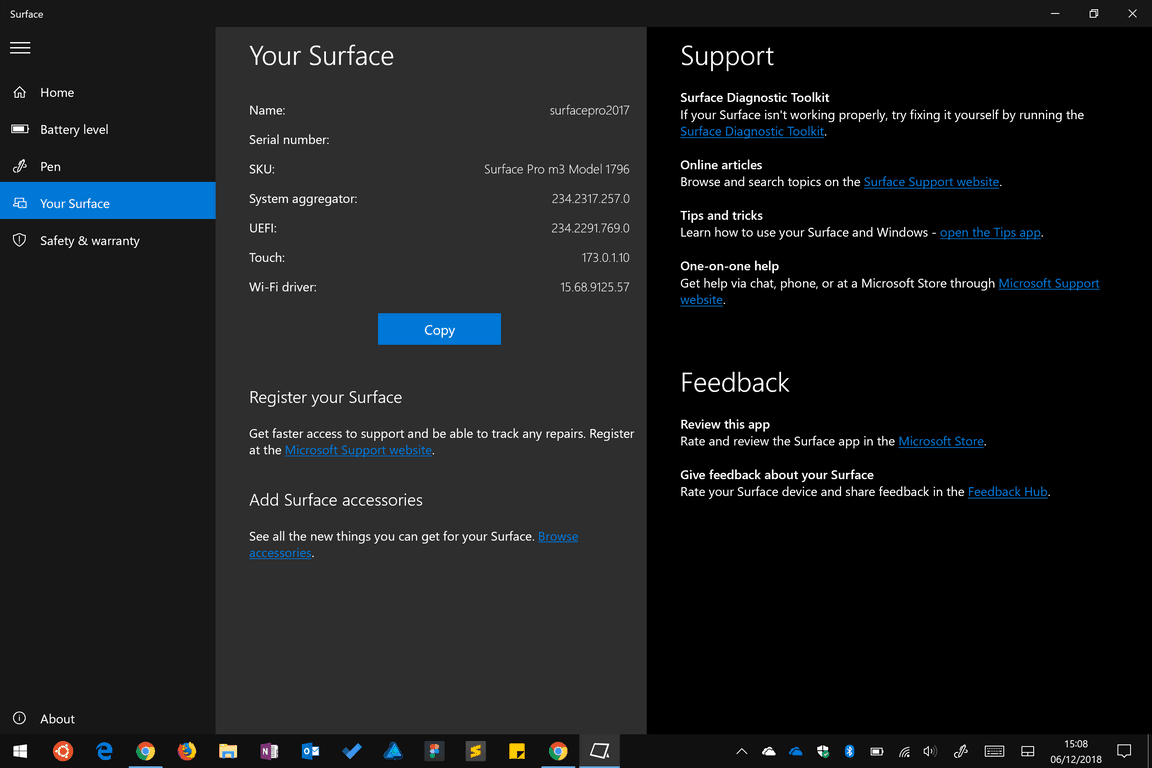
Surface app screenshot

\n

That’s about it for this guide. As we wrote in the introduction, setting up your Surface is simple, although it may take some time depending on your device and internet connection. You’re now updated, more familiar with your device and ready to start installing apps – use the Start menu to open the Microsoft Store and see what’s available. Ultimately, setting up a Surface is no different to any other Windows 10 PC, despite the unique hardware that the range offers.

\n\nFurther reading: Surface, Surface Book, Surface Laptop, Surface Pro, Windows 10

Share this article:
Tags:
Surface Surface Book Surface Laptop Surface Pro Windows 10
James Walker
Written by

James Walker

I'm a web developer and technology journalist with a particular interest in Microsoft innovations. I'm the founder of Heron Web (heron-web.com), a UK digital agency for web design and development. When I'm not working, I'm a PC gamer and passionate transport enthusiast.

Previous Article Is 2019 the Year of Azure for Microsoft? It is for OnMSFT.com! Next Article Life is Strange: BTS and ARK are now available to play with Xbox Game Pass

Related Articles

43 Microsoft Edge keyboard shortcuts to remember for stylish and speedy web surfing

October 31, 2023

How to use accessibility features in Microsoft 365 like Narrator, Read aloud and Voice Search easily

October 30, 2023

How to use Windows Backup on Windows 11 for efficient data protection

October 26, 2023

Leave a Comment Cancel reply

Your email address will not be published. Required fields are marked *

Recent Posts

  • PowerToys 0.75 released; Environment Variables editor is here
  • Former Halo developer Bungie announces layoffs in wake of game delays
  • Siemens and Microsoft partner to bring GenAI to industries worldwide
  • 43 Microsoft Edge keyboard shortcuts to remember for stylish and speedy web surfing
  • Here is what’s coming to (and leaving) Xbox Game Pass soon

Recent Comments

No comments to show.

Archives

  • October 2023
  • September 2023
  • August 2023
  • July 2023
  • June 2023
  • May 2023
  • April 2023
  • March 2023
  • February 2023
  • January 2023
  • December 2022
  • November 2022
  • October 2022
  • September 2022
  • August 2022
  • July 2022
  • June 2022
  • May 2022
  • April 2022
  • March 2022
  • February 2022
  • January 2022
  • December 2021
  • November 2021
  • October 2021
  • September 2021
  • August 2021
  • July 2021
  • June 2021
  • May 2021
  • April 2021
  • March 2021
  • February 2021
  • January 2021
  • December 2020
  • November 2020
  • October 2020
  • September 2020
  • August 2020
  • July 2020
  • June 2020
  • May 2020
  • April 2020
  • March 2020
  • February 2020
  • January 2020
  • December 2019
  • November 2019
  • October 2019
  • September 2019
  • August 2019
  • July 2019
  • June 2019
  • May 2019
  • April 2019
  • March 2019
  • February 2019
  • January 2019
  • December 2018
  • November 2018
  • October 2018
  • September 2018
  • August 2018
  • July 2018
  • June 2018
  • May 2018
  • April 2018
  • March 2018
  • February 2018
  • January 2018
  • December 2017
  • November 2017
  • October 2017
  • September 2017
  • August 2017
  • July 2017
  • June 2017
  • May 2017
  • April 2017
  • March 2017
  • February 2017
  • January 2017
  • December 2016
  • November 2016
  • October 2016
  • September 2016
  • August 2016
  • July 2016
  • June 2016
  • May 2016
  • April 2016
  • March 2016
  • February 2016
  • January 2016
  • December 2015
  • November 2015
  • October 2015
  • September 2015
  • August 2015
  • July 2015
  • June 2015
  • May 2015
  • April 2015
  • March 2015
  • February 2015
  • January 2015
  • December 2014
  • November 2014
  • October 2014
  • September 2014
  • August 2014
  • July 2014
  • June 2014
  • May 2014
  • April 2014
  • March 2014
  • February 2014
  • January 2014
  • December 2013
  • November 2013
  • October 2013
  • September 2013
  • August 2013
  • July 2013
  • June 2013
  • May 2013
  • April 2013
  • March 2013
  • February 2013
  • January 2013
  • December 2012
  • November 2012
  • October 2012
  • September 2012
  • August 2012
  • July 2012
  • June 2012
  • May 2012
  • April 2012
  • March 2012
  • February 2012
  • January 2012
  • December 2011
  • November 2011
  • October 2011
  • September 2011
  • August 2011
  • July 2011
  • June 2011
  • May 2011
  • April 2011
  • March 2011
  • February 2011
  • January 2011
  • December 2010
  • November 2010
  • October 2010
  • September 2010

Categories

  • Announcements
  • Deals
  • Developer
  • Editorial
  • Feature
  • Feature stories
  • Hero-post
  • Hotdeals
  • How-to
  • Latest news
  • Microsoft / office 365
  • News
  • Office 365
  • Onpodcast
  • Opinion
  • Our featured post
  • Polls
  • Review
  • Reviews
  • Videos
OnMSFT.com

OnMSFT.com covers Microsoft news, reviews, and how-to guides. Formerly known as WinBeta, we have been your source for Microsoft news since 1998.

Categories

  • Windows
  • Surface
  • Xbox
  • How-To
  • OnPodcast
  • Gaming
  • Edge
  • Teams

Recent Posts

  • PowerToys 0.75 released; Environment Variables editor is here
  • Former Halo developer Bungie announces layoffs in wake of game delays
  • Siemens and Microsoft partner to bring GenAI to industries worldwide
  • 43 Microsoft Edge keyboard shortcuts to remember for stylish and speedy web surfing
  • Here is what’s coming to (and leaving) Xbox Game Pass soon

Quick Links

  • About OnMSFT.com
  • Contact OnMSFT
  • Join Our Team
© 2010–2026 OnMSFT.com LLC. All rights reserved.
About OnMSFT.comContact OnMSFT