Skip to content
OnMSFT.com
  • Home
  • About
  • Contact
  • Windows
  • Surface
  • Xbox
  • How-To
  • OnPodcast
  • Edge
  • Teams
  • Gaming
Menu
  • Home
  • About
  • Contact
  • Windows
  • Surface
  • Xbox
  • How-To
  • OnPodcast
  • Edge
  • Teams
  • Gaming
  1. Home
  2. How-to
  3. 9 simple tips to try to make Windows 11 look more like Windows 10

9 simple tips to try to make Windows 11 look more like Windows 10

admin admin
February 21, 2023
4 min read

\n

\n

\n

In this article

\n

\n

  • #1 Start
  • #2 Taskbar
  • #3 File Explorer
  • #4 System icons
  • #5 Theme
  • #6 Task View
  • #7 Action Center
  • #8 Mouse pointer
  • #9 Context menus
  • Conclusion

\n

Many Windows 11 users have expressed concerns about the new user interface and how different it looks from its predecessor, Windows 10. While Windows 11 brings many new features and improvements, it can take time to get used to the new interface.

\n

Fortunately, there are several ways to make Windows 11 look more like Windows 10 and in this guide, we will explore some of the ways you can customize the Windows 11 interface to make it more familiar and comfortable for Windows 10 users.

\n

\n

\n

\n

\n

\n

\n

\n

\n

\n

\n

\n

\n

\n

#1: Start

\n

One of the most notable changes in Windows 11 is the Start menu, which is now centered on the screen and uses a new design. But if you prefer the classic Start menu from Windows 10, you can’t switch back to exactly how Windows 10 was, but you can customize it by opening Windows Settings and going to Personalization > Start.
\nwindows 11 look more like windows 10
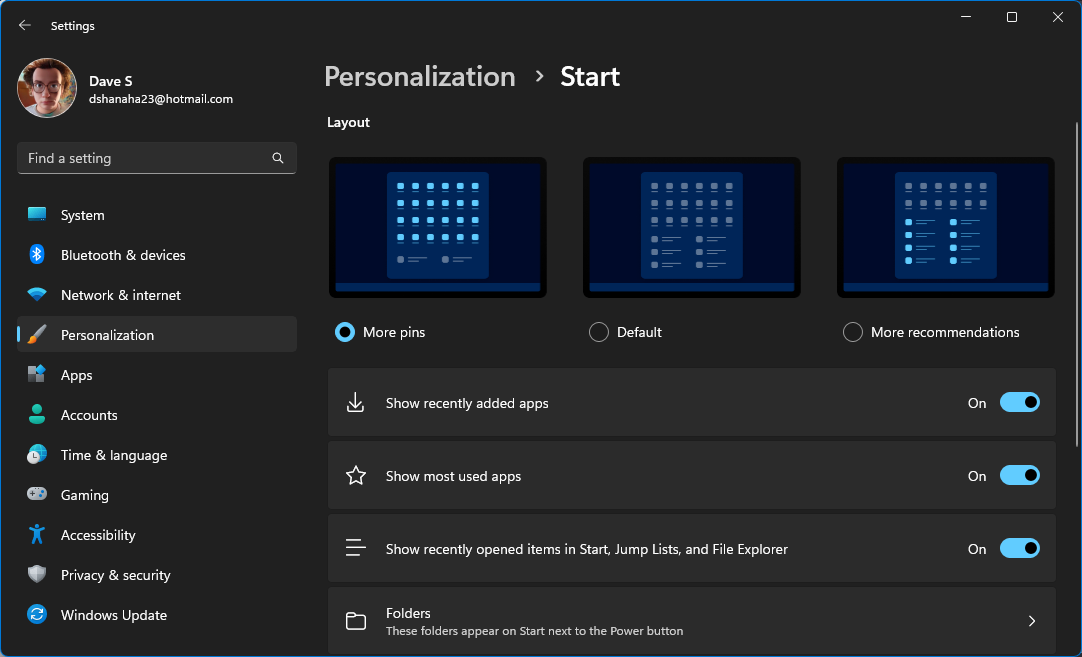
\nFor example, you can pick a layout like More pins to allow you to add more custom apps, files, and folders to Start.

\n

#2: Taskbar

\n

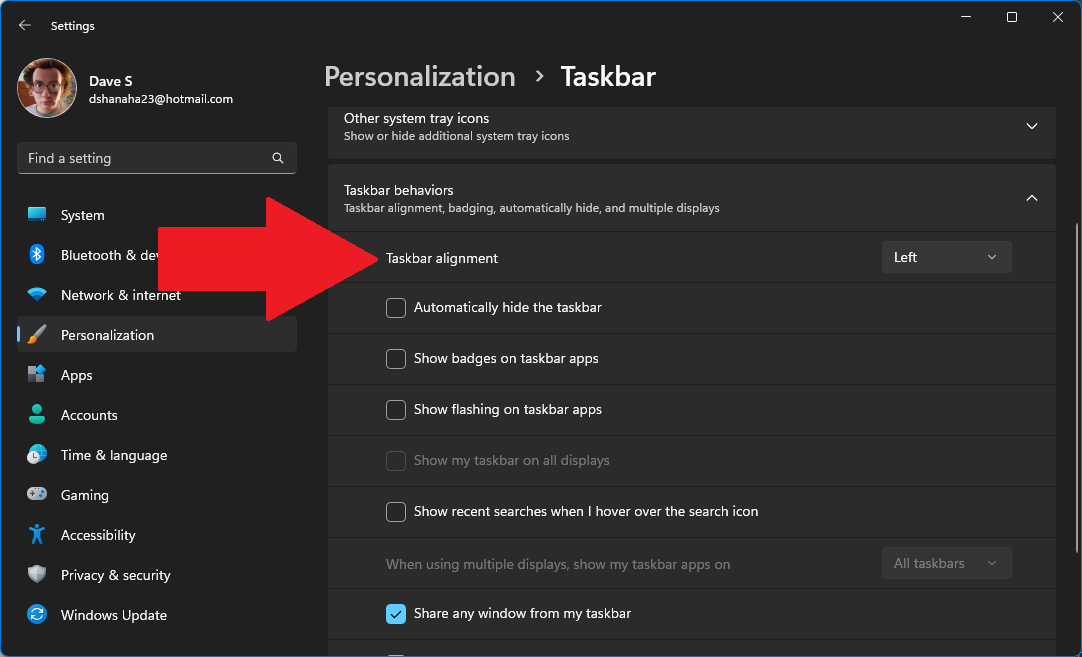
On Windows 11, the taskbar has been moved to the center of the screen by default and uses a new design. You can be taken directly to the Taskbar options in settings by right clicking the Windows 11 Taskbar and clicking Taskbar settings.

\n
windows 11 look more like windows 10

\n

To move it back to the left side of the screen and make it look more like Windows 10, you need to open Windows Settings and go to Personalization > Taskbar > Taskbar behaviors. Click Left from the drop-down menu next to Taskbar alignment.

\n

#3: File Explorer

\n
windows 11 look more like windows 10

\n

\n

\n

\n

\n

\n

\n

\n

\n

\n

\n

\n

\n

\n

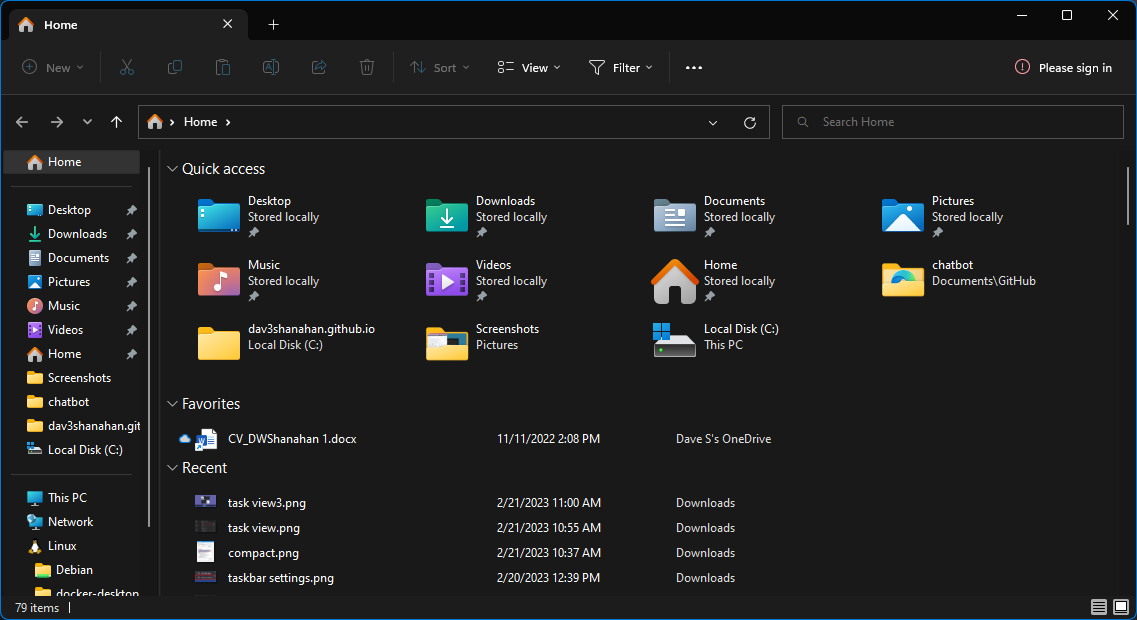
Windows 11’s File Explorer has a new design, but you can make it feel more like Windows 10 by enabling the “Compact view” option in File Explorer.

\n

#4: System icons

\n

Windows 11 has new system icons for features like Wi-Fi, battery, and sound. If you prefer to use the old icons from Windows 10, find the Windows 10 icons pack you want to use, and check out our guide on how to change them in Windows 11.

\n

#5: Theme

\n

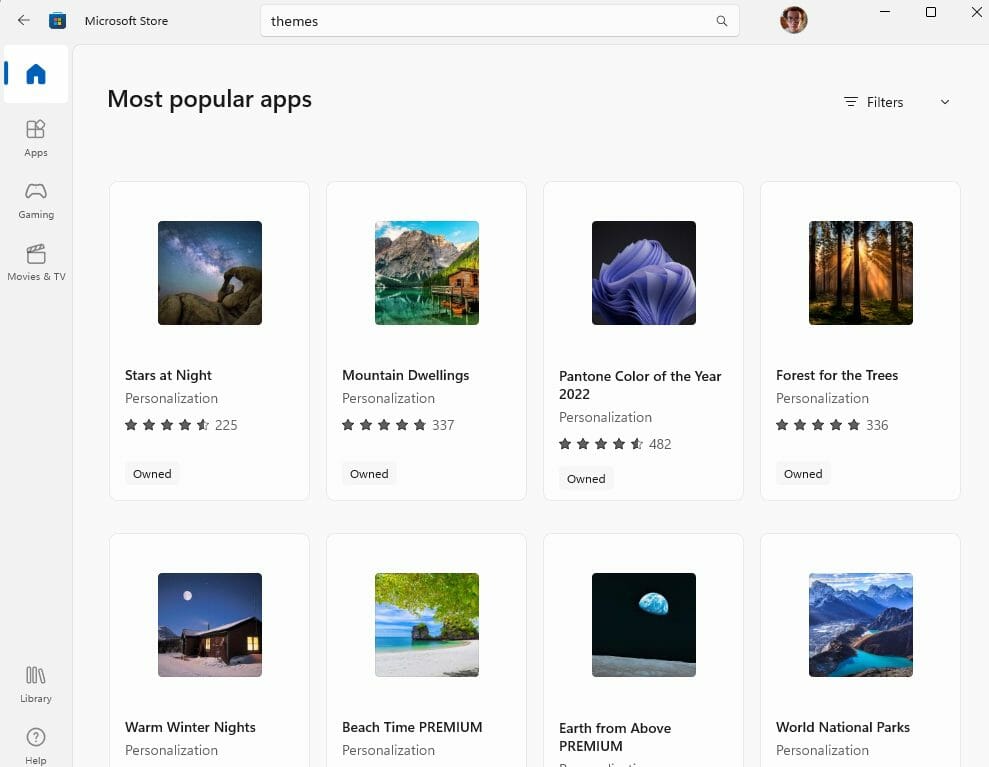
Windows 11 comes with a new default theme that uses light colors and rounded corners. However, you can download and install desktop themes for Windows 11 from existing theme packs from Windows 10.

\n
make windows 11 look like windows 10
Install a theme from the Microsoft Store

\n

There are plenty of ways to download a theme from the Microsoft Store or personalize and make one on your own on Windows 11. But keep in mind that these options may change as Microsoft continues to redesign and reconfigure features and settings in Windows 11.

\n

#6: Task View

\n

In Windows 10, Task view was accessed by clicking a button on your taskbar. On Windows 11, you can access Task view by using the keyboard shortcut Windows key + Tab. If you want to change it back to a button on your taskbar, open Settings and go to Personalization > Taskbar and make sure that the Task view toggle is turned on.
\nwindows 11 look more like windows 10You can still use the keyboard shortcut to activate Task view, but now you can also click the Task view button on your taskbar any time you want to access Task view on Windows 11. 

\n

#7: Action Center

\n
windows 11 look more like windows 10

\n

\n

\n

\n

\n

\n

\n

\n

\n

\n

\n

\n

\n

\n

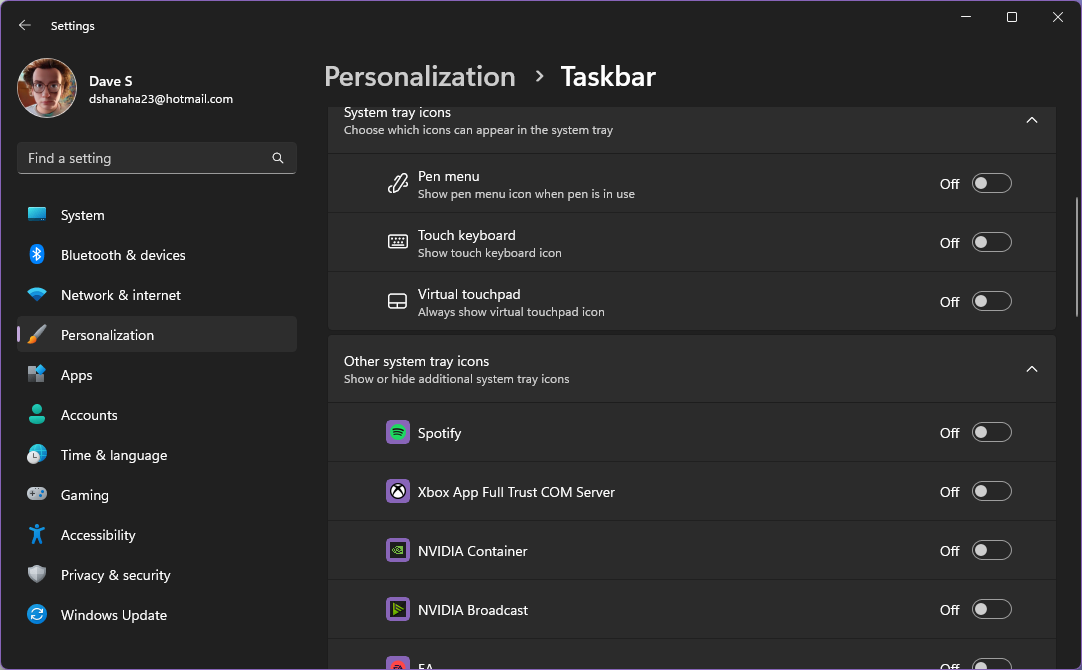
Windows 11’s Action Center has been redesigned and now includes quick settings for things like Wi-Fi, battery, Bluetooth, and sound. If you want to customize it and try to make Windows 11 look more like Windows 10, you can right-click the taskbar and click Taskbar settings (Settings > Personalization > Taskbar). Then scroll to the System tray icons and Other system tray icons and click to turn on or off the system icons you want or don’t want to see.

\n

#8: Mouse pointer

\n
windows 11 look more like windows 10

\n

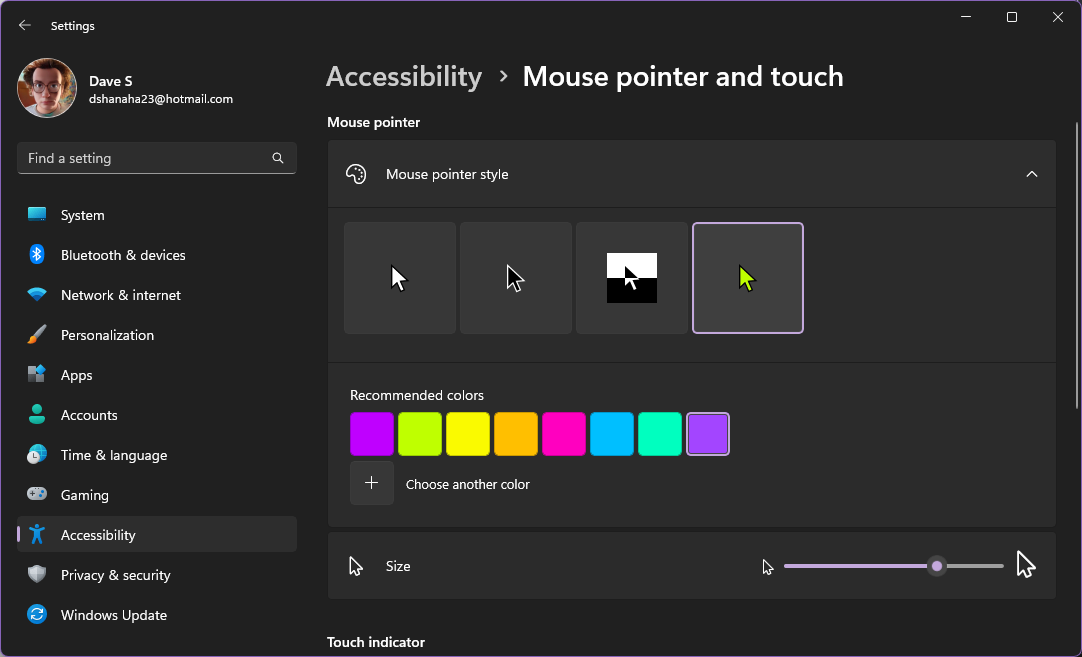
Windows 11 comes with new mouse pointers that match the overall theme of Microsoft’s newest operating system. However, if you prefer the old mouse pointers from Windows 10, go to Settings > Accessibility > Mouse pointer and touch. From there, you can follow our guide on changing your mouse cursor on Windows 11 and Windows 10.

\n

#9: Context menus

\n

Context menus in Windows 11 have changed to match up with the new design and interface and offers ways you can edit the Windows Registry to add new apps to the context menu or use a program like TranslucentFlyouts to turn your context menu transparent.

\n

Conclusion

\n

While Windows 11 can take some getting used to, it is a powerful and efficient operating system that is designed to meet the needs of modern users. By making Windows 11 look more like Windows 10, you can make the transition to Windows 11 much smoother and enjoy all of the new features and improvements that it has to offer. With these tips, you can customize the interface to meet your needs and preferences and enjoy a comfortable and familiar computing experience on Windows 11.

\n\n

Share this article:
Previous Article Major quality improvement coming to the new Bing this week Next Article Four more games headed to Xbox Game Pass next week

Related Articles

43 Microsoft Edge keyboard shortcuts to remember for stylish and speedy web surfing

October 31, 2023

How to use accessibility features in Microsoft 365 like Narrator, Read aloud and Voice Search easily

October 30, 2023

How to use Windows Backup on Windows 11 for efficient data protection

October 26, 2023

Leave a Comment Cancel reply

Your email address will not be published. Required fields are marked *

Recent Posts

  • PowerToys 0.75 released; Environment Variables editor is here
  • Former Halo developer Bungie announces layoffs in wake of game delays
  • Siemens and Microsoft partner to bring GenAI to industries worldwide
  • 43 Microsoft Edge keyboard shortcuts to remember for stylish and speedy web surfing
  • Here is what’s coming to (and leaving) Xbox Game Pass soon

Recent Comments

No comments to show.

Archives

  • October 2023
  • September 2023
  • August 2023
  • July 2023
  • June 2023
  • May 2023
  • April 2023
  • March 2023
  • February 2023
  • January 2023
  • December 2022
  • November 2022
  • October 2022
  • September 2022
  • August 2022
  • July 2022
  • June 2022
  • May 2022
  • April 2022
  • March 2022
  • February 2022
  • January 2022
  • December 2021
  • November 2021
  • October 2021
  • September 2021
  • August 2021
  • July 2021
  • June 2021
  • May 2021
  • April 2021
  • March 2021
  • February 2021
  • January 2021
  • December 2020
  • November 2020
  • October 2020
  • September 2020
  • August 2020
  • July 2020
  • June 2020
  • May 2020
  • April 2020
  • March 2020
  • February 2020
  • January 2020
  • December 2019
  • November 2019
  • October 2019
  • September 2019
  • August 2019
  • July 2019
  • June 2019
  • May 2019
  • April 2019
  • March 2019
  • February 2019
  • January 2019
  • December 2018
  • November 2018
  • October 2018
  • September 2018
  • August 2018
  • July 2018
  • June 2018
  • May 2018
  • April 2018
  • March 2018
  • February 2018
  • January 2018
  • December 2017
  • November 2017
  • October 2017
  • September 2017
  • August 2017
  • July 2017
  • June 2017
  • May 2017
  • April 2017
  • March 2017
  • February 2017
  • January 2017
  • December 2016
  • November 2016
  • October 2016
  • September 2016
  • August 2016
  • July 2016
  • June 2016
  • May 2016
  • April 2016
  • March 2016
  • February 2016
  • January 2016
  • December 2015
  • November 2015
  • October 2015
  • September 2015
  • August 2015
  • July 2015
  • June 2015
  • May 2015
  • April 2015
  • March 2015
  • February 2015
  • January 2015
  • December 2014
  • November 2014
  • October 2014
  • September 2014
  • August 2014
  • July 2014
  • June 2014
  • May 2014
  • April 2014
  • March 2014
  • February 2014
  • January 2014
  • December 2013
  • November 2013
  • October 2013
  • September 2013
  • August 2013
  • July 2013
  • June 2013
  • May 2013
  • April 2013
  • March 2013
  • February 2013
  • January 2013
  • December 2012
  • November 2012
  • October 2012
  • September 2012
  • August 2012
  • July 2012
  • June 2012
  • May 2012
  • April 2012
  • March 2012
  • February 2012
  • January 2012
  • December 2011
  • November 2011
  • October 2011
  • September 2011
  • August 2011
  • July 2011
  • June 2011
  • May 2011
  • April 2011
  • March 2011
  • February 2011
  • January 2011
  • December 2010
  • November 2010
  • October 2010
  • September 2010

Categories

  • Announcements
  • Deals
  • Developer
  • Editorial
  • Feature
  • Feature stories
  • Hero-post
  • Hotdeals
  • How-to
  • Latest news
  • Microsoft / office 365
  • News
  • Office 365
  • Onpodcast
  • Opinion
  • Our featured post
  • Polls
  • Review
  • Reviews
  • Videos
OnMSFT.com

OnMSFT.com covers Microsoft news, reviews, and how-to guides. Formerly known as WinBeta, we have been your source for Microsoft news since 1998.

Categories

  • Windows
  • Surface
  • Xbox
  • How-To
  • OnPodcast
  • Gaming
  • Edge
  • Teams

Recent Posts

  • PowerToys 0.75 released; Environment Variables editor is here
  • Former Halo developer Bungie announces layoffs in wake of game delays
  • Siemens and Microsoft partner to bring GenAI to industries worldwide
  • 43 Microsoft Edge keyboard shortcuts to remember for stylish and speedy web surfing
  • Here is what’s coming to (and leaving) Xbox Game Pass soon

Quick Links

  • About OnMSFT.com
  • Contact OnMSFT
  • Join Our Team
© 2010–2026 OnMSFT.com LLC. All rights reserved.
About OnMSFT.comContact OnMSFT