Skip to content
OnMSFT.com
  • Home
  • About
  • Contact
  • Windows
  • Surface
  • Xbox
  • How-To
  • OnPodcast
  • Edge
  • Teams
  • Gaming
Menu
  • Home
  • About
  • Contact
  • Windows
  • Surface
  • Xbox
  • How-To
  • OnPodcast
  • Edge
  • Teams
  • Gaming
  1. Home
  2. How-to
  3. How to use File History to make a secure backup on Windows 10

How to use File History to make a secure backup on Windows 10

Dave W. Shanahan Dave W. Shanahan
July 23, 2020
4 min read

How to use File History to make secure backups on Windows 10

To use File History to make secure backups on Windows 10, follow these steps:

1. Go to Settings > Update & Security > Backup
2. Choose the plus sign (+) next to Add a drive
3. Choose the external or network drive
4. Choose Backup Now

Applies to All Windows 10 Versions

On Windows 10, the File History feature allows you to back up copies of files and folders to secure locations in the case you delete something by accident. By default, the File History feature will back up the files that are in the Music, Pictures, Documents, Downloads, and Videos folders, but you can also manually remove those default folders and add custom folders.

For the most secure experience, Microsoft suggests that you use an externally connected drive, like a USB drive, or use a network drive to backup your files. There are other options of saving backups, but these two are the most secure and provide the best options to protect your files from unforeseen PC issues. It is important to point out that your PC has BitLocker Drive Encryption, but your File History drive does not.

File History Backup

In order to get started using File History on Windows 10, use these steps:

1. Go to Settings > Update & Security > Backup
2. Choose + next to Add a drive
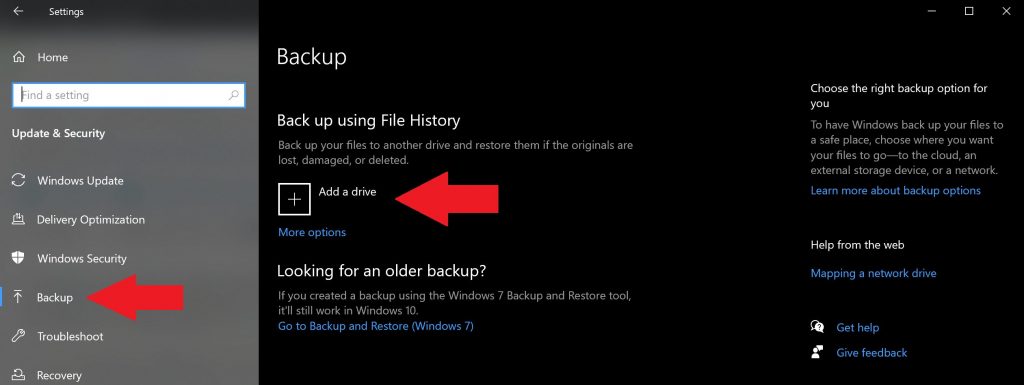
3. Click the external drive or the network drive
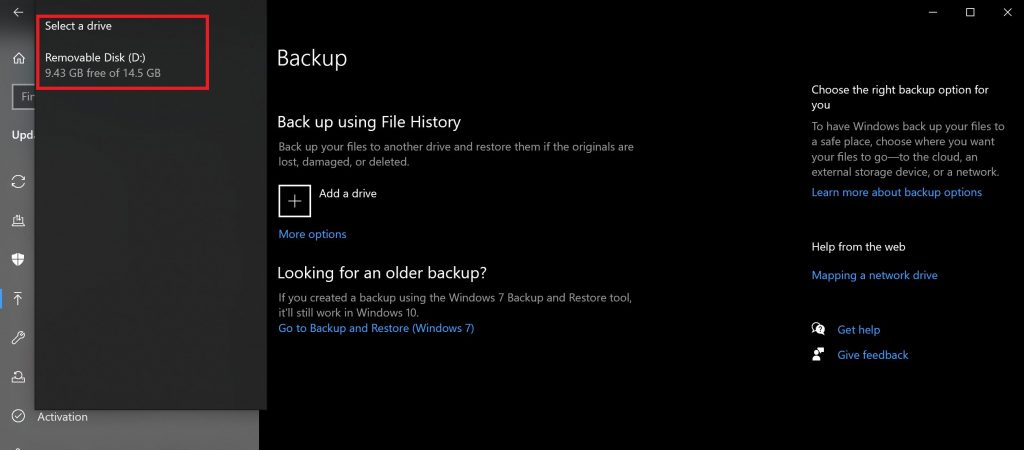
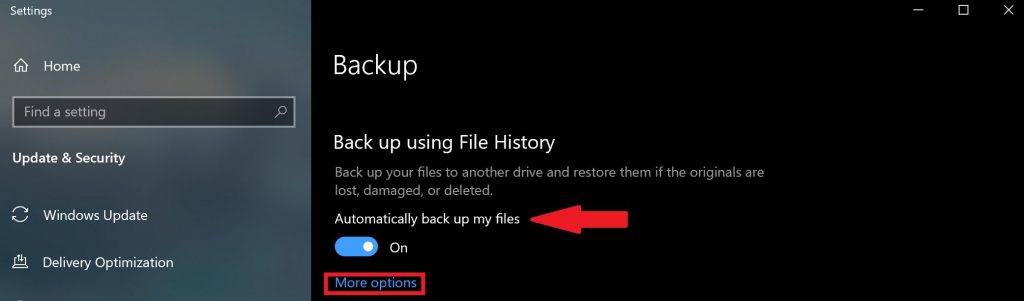
4. Once you choose the external drive or network drive, File History will begin backing up your data. If you want to turn off the data backup at any time, turn the toggle Automatically backup my files to off.
5. Choose More options under the toggle to see what folders File History is backing up on your PC.
6. Choose Back up now to start backing up your files to your selected drive.
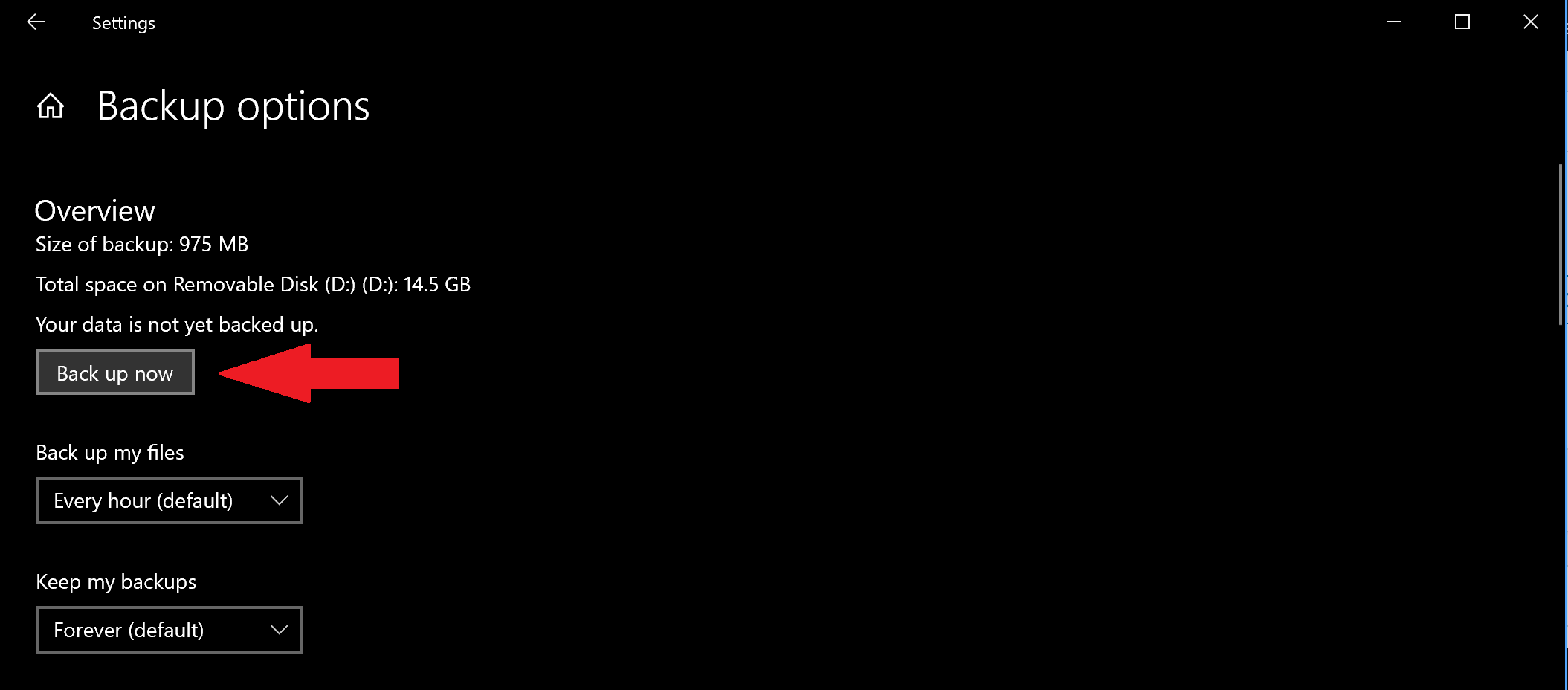
Once you choose the external drive or network drive, File History will begin backing up your data. If you want to turn off the data backup, click Cancel to turn off the backup.
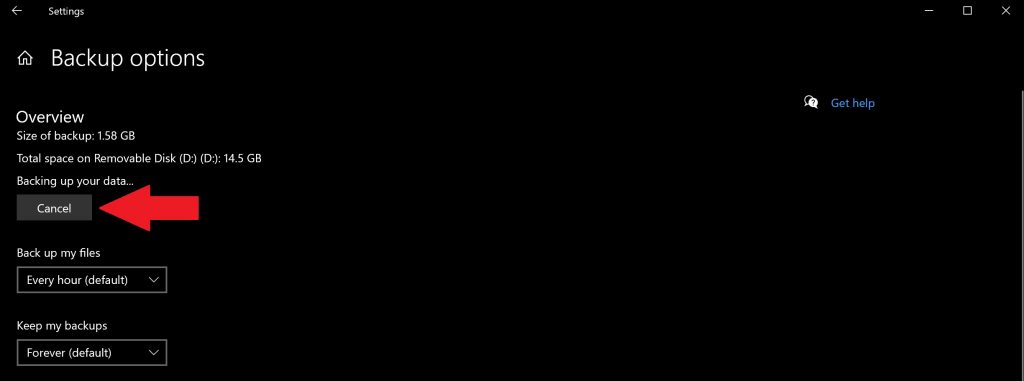
Congratulations, you have created your first backup! In the future, if your PC experiences a catastrophic event and you have to start from scratch, you will have a way to restore your most pertinent files. After your files finish backing up, you can use the dropdown menus to change the frequency of new backups that are saved and the length of time you want to keep your backups on Windows 10.

Add a custom folder to Backup

By default, File History is configured to save the folders that are located under the user’s %UserProfile% folder at “C:\users\[user].” If you want to add custom folders to your backup, you need to indicate which additional folders you want to save.

If you want to add a custom folder, follow these steps.

1. Go to Settings > Update & Security > Backup and choose More options
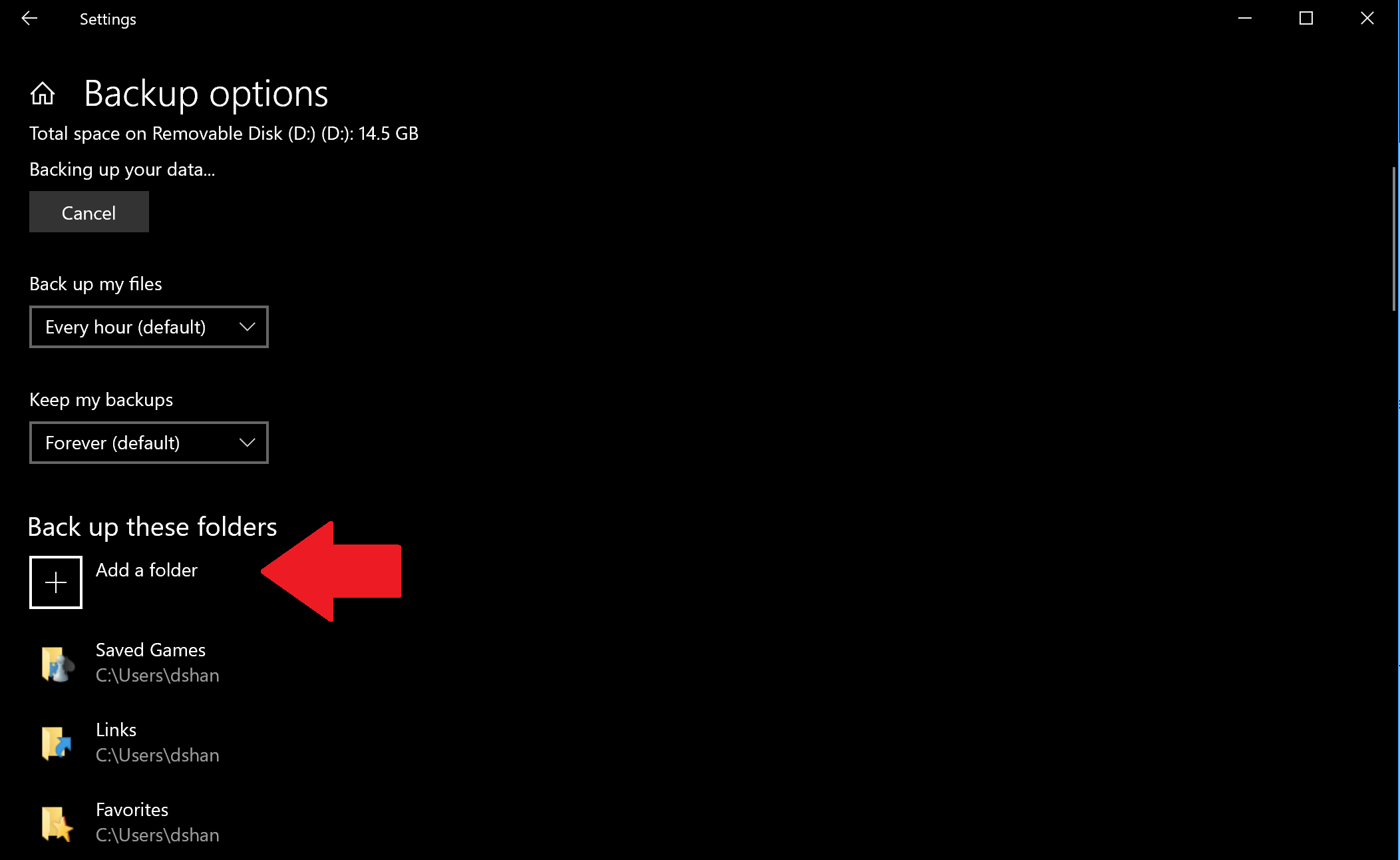
2. Choose Add a folder under Back up these folders
3. Add your custom folder

Once added, your custom folder will be saved and added to your next backup. Keep changes you make to your files in mind when backing up files in Files History because Windows 10 will backup and store different versions of the same files.

Restore files or folders using File Explorer

In the event that one of your folders or files gets damaged or inadvertently deleted, you can use File History to restore the file or folder you need from a specific backup date. If you need to restore a file using File History, follow these steps:

1. Open File Explorer and go to the folder whose files you want to restore. At the top of the windows, under the Home tab in File Explorer, there is a History menu option as shown below.
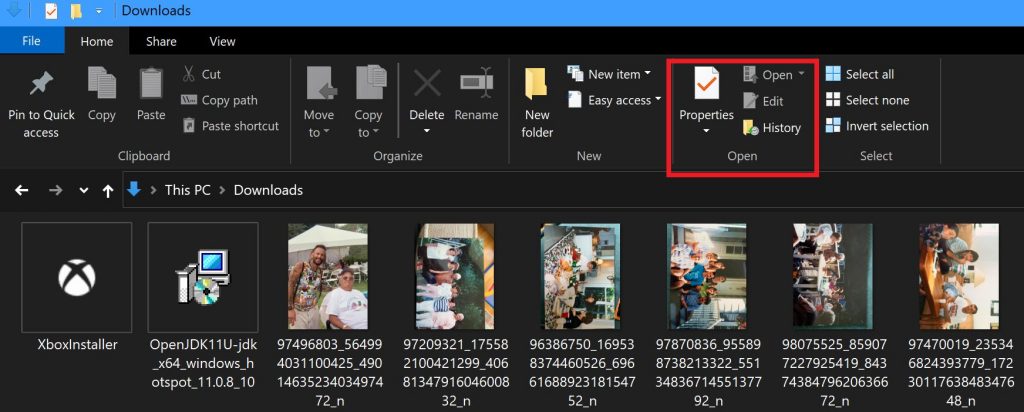
2. Choose History and the File History screen will pop up showing your the most current backup of this folder. If you have backed up this folder on multiple dates, you can switch between the different dates too.
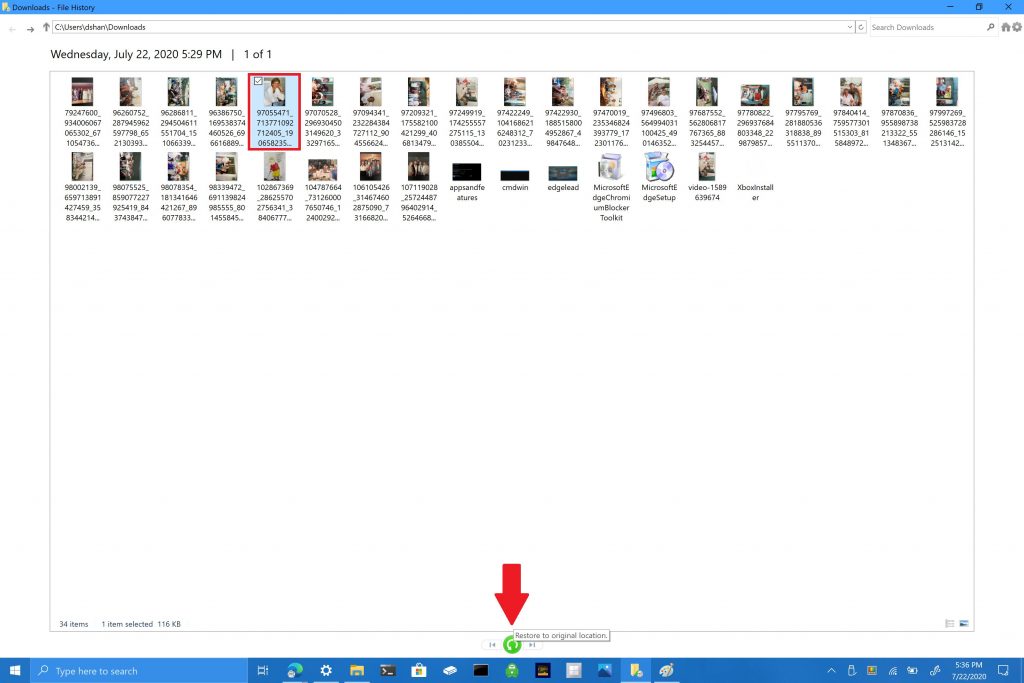
3. Choose the file you want to restore and click on the green restore button to restore the file to original location as indicated.

It is important to note that you can also choose to open File History by going to Settings > Update & Security > Backup and choose More options. At the bottom of the page, choose Restore files from a current backup to open the File History page and repeat steps #2 and #3.
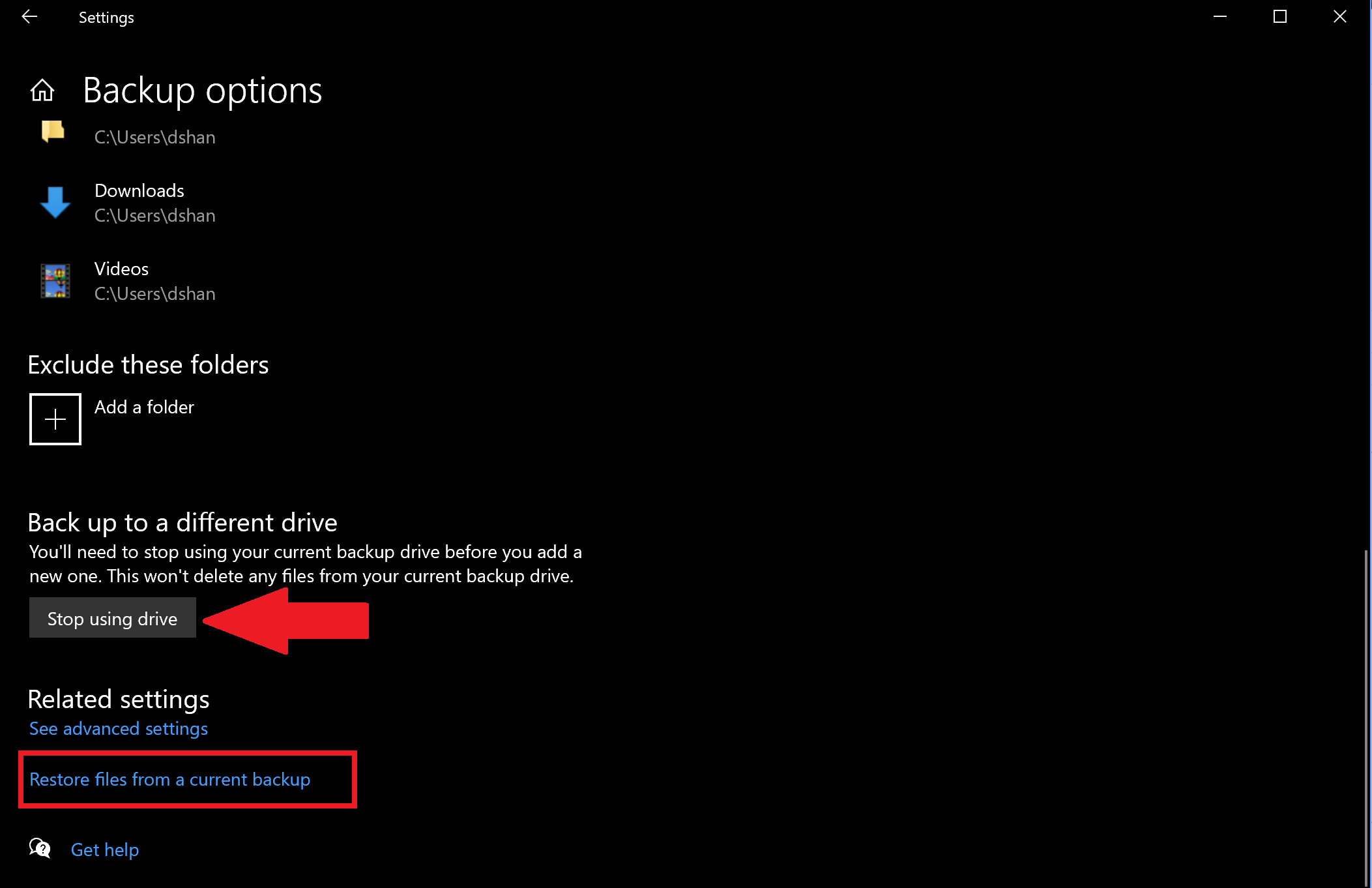
You are also not limited to just individual files, you can also restore whole folders if necessary. If you want to backup to another different drive, or create a different backup, you need to click Stop using drive. This will stop the current backup and you can now save a new backup to a new USB or network drive.

Share This Post:

Tags: backup | File Explorer | File History | Microsoft | Recovery | Security | Settings | Windows 10 | Windows File Recovery | Windows Settings
Share this article:
Tags:
backup File Explorer File History Microsoft Recovery Security Settings Windows 10 Windows File Recovery Windows Settings
Dave W. Shanahan
Written by

Dave W. Shanahan

Dave is a Boston-based technical writer at OnMSFT.com. Fan of Windows 10, Xbox One, Surface, Raspberry Pi, 3D printing, and bocce.

Previous Article Watch the Xbox games showcase and Summer Game Fest pre-show here at 8AM PT Next Article How to get set up with the new meeting and calling experience in Microsoft Teams

Related Articles

43 Microsoft Edge keyboard shortcuts to remember for stylish and speedy web surfing

October 31, 2023

How to use accessibility features in Microsoft 365 like Narrator, Read aloud and Voice Search easily

October 30, 2023

How to use Windows Backup on Windows 11 for efficient data protection

October 26, 2023

Leave a Comment Cancel reply

Your email address will not be published. Required fields are marked *

Recent Posts

  • PowerToys 0.75 released; Environment Variables editor is here
  • Former Halo developer Bungie announces layoffs in wake of game delays
  • Siemens and Microsoft partner to bring GenAI to industries worldwide
  • 43 Microsoft Edge keyboard shortcuts to remember for stylish and speedy web surfing
  • Here is what’s coming to (and leaving) Xbox Game Pass soon

Recent Comments

No comments to show.

Archives

  • October 2023
  • September 2023
  • August 2023
  • July 2023
  • June 2023
  • May 2023
  • April 2023
  • March 2023
  • February 2023
  • January 2023
  • December 2022
  • November 2022
  • October 2022
  • September 2022
  • August 2022
  • July 2022
  • June 2022
  • May 2022
  • April 2022
  • March 2022
  • February 2022
  • January 2022
  • December 2021
  • November 2021
  • October 2021
  • September 2021
  • August 2021
  • July 2021
  • June 2021
  • May 2021
  • April 2021
  • March 2021
  • February 2021
  • January 2021
  • December 2020
  • November 2020
  • October 2020
  • September 2020
  • August 2020
  • July 2020
  • June 2020
  • May 2020
  • April 2020
  • March 2020
  • February 2020
  • January 2020
  • December 2019
  • November 2019
  • October 2019
  • September 2019
  • August 2019
  • July 2019
  • June 2019
  • May 2019
  • April 2019
  • March 2019
  • February 2019
  • January 2019
  • December 2018
  • November 2018
  • October 2018
  • September 2018
  • August 2018
  • July 2018
  • June 2018
  • May 2018
  • April 2018
  • March 2018
  • February 2018
  • January 2018
  • December 2017
  • November 2017
  • October 2017
  • September 2017
  • August 2017
  • July 2017
  • June 2017
  • May 2017
  • April 2017
  • March 2017
  • February 2017
  • January 2017
  • December 2016
  • November 2016
  • October 2016
  • September 2016
  • August 2016
  • July 2016
  • June 2016
  • May 2016
  • April 2016
  • March 2016
  • February 2016
  • January 2016
  • December 2015
  • November 2015
  • October 2015
  • September 2015
  • August 2015
  • July 2015
  • June 2015
  • May 2015
  • April 2015
  • March 2015
  • February 2015
  • January 2015
  • December 2014
  • November 2014
  • October 2014
  • September 2014
  • August 2014
  • July 2014
  • June 2014
  • May 2014
  • April 2014
  • March 2014
  • February 2014
  • January 2014
  • December 2013
  • November 2013
  • October 2013
  • September 2013
  • August 2013
  • July 2013
  • June 2013
  • May 2013
  • April 2013
  • March 2013
  • February 2013
  • January 2013
  • December 2012
  • November 2012
  • October 2012
  • September 2012
  • August 2012
  • July 2012
  • June 2012
  • May 2012
  • April 2012
  • March 2012
  • February 2012
  • January 2012
  • December 2011
  • November 2011
  • October 2011
  • September 2011
  • August 2011
  • July 2011
  • June 2011
  • May 2011
  • April 2011
  • March 2011
  • February 2011
  • January 2011
  • December 2010
  • November 2010
  • October 2010
  • September 2010

Categories

  • Announcements
  • Deals
  • Developer
  • Editorial
  • Feature
  • Feature stories
  • Hero-post
  • Hotdeals
  • How-to
  • Latest news
  • Microsoft / office 365
  • News
  • Office 365
  • Onpodcast
  • Opinion
  • Our featured post
  • Polls
  • Review
  • Reviews
  • Videos
OnMSFT.com

OnMSFT.com covers Microsoft news, reviews, and how-to guides. Formerly known as WinBeta, we have been your source for Microsoft news since 1998.

Categories

  • Windows
  • Surface
  • Xbox
  • How-To
  • OnPodcast
  • Gaming
  • Edge
  • Teams

Recent Posts

  • PowerToys 0.75 released; Environment Variables editor is here
  • Former Halo developer Bungie announces layoffs in wake of game delays
  • Siemens and Microsoft partner to bring GenAI to industries worldwide
  • 43 Microsoft Edge keyboard shortcuts to remember for stylish and speedy web surfing
  • Here is what’s coming to (and leaving) Xbox Game Pass soon

Quick Links

  • About OnMSFT.com
  • Contact OnMSFT
  • Join Our Team
© 2010–2026 OnMSFT.com LLC. All rights reserved.
About OnMSFT.comContact OnMSFT