Skip to content
OnMSFT.com
  • Home
  • About
  • Contact
  • News
  • How-to
  • Feature stories
  • Deals
  • Microsoft / office 365
  • Reviews
Menu
  • Home
  • About
  • Contact
  • News
  • How-to
  • Feature stories
  • Deals
  • Microsoft / office 365
  • Reviews
  1. Home
  2. Latest news
  3. Windows 8.1 tips and tricks: Choosing the default apps for specific file types or tasks

Windows 8.1 tips and tricks: Choosing the default apps for specific file types or tasks

Ron Ron
July 15, 2019
2 min read

Windows 8.1 default apps

As we approach the general availability of Windows 8.1 on October 17th for Windows 8 users, we’re going to go over some simple tips and tricks for the operating system update until the day its released. In today’s tips and tricks feature, we will talk about setting the default apps for specific file types.

Like most power users, we install more than one internet browser or more than one media player. For example, in my case as a web developer, I have Google Chrome and Firefox installed alongside Internet Explorer. However, I prefer to use Google Chrome as my primary internet browser. Thanks to Windows 8.1, I can now easily set the default web browser, or media player, or email app via the new metro/modern PC Settings.

Simply open up the Charms bar (or Win key + C) and select Settings. Then hit Change PC Settings. Click Search and Apps. Under the Defaults category, you can now easily select which app you want to set as the default app for that file type or task. I can select Media Player Classic as the default video player, instead of Windows Media Player, for example.

There is also an option for users to select the default action for file types. For example, you can specify what app opens up a .7z file or .3gp file. With this minor adjustment to Windows 8.1, you can now make these changes directly from the new PC Settings app. You no longer need to open up the old Control Panel to make these changes.

Windows 8.1 is set for release on October 17th and is a free upgrade for Windows 8 users.

Further reading: Microsoft, Windows 8.1

Share this article:
Tags:
Microsoft Windows 8.1
Previous Article Windows Phone finally gets a decent stock video editing app with Video Tuner Next Article Microsoft rolls out updated Bing Maps SDK for Windows 8.1, adds new Bing logo and more

Related Articles

Chrome tests Google Drive file uploads in the AI Mode compose box

April 14, 2026
Gemini image creation using right click desktop Chrome

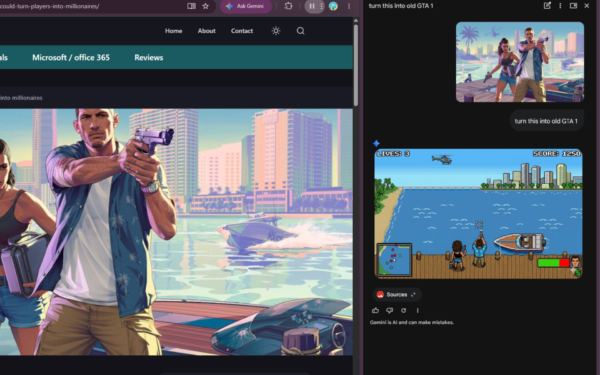
Chrome lets you remake images with Gemini on desktop using just a right-click

April 13, 2026
Samsung Display crosses 5 million QD-OLED monitor shipments as demand grows fast, with new panels and strong premium market expansion worldwide.

Samsung Display Ships 5 Million QD-OLED Monitor Panels in Four Years

April 9, 2026

Leave a Comment Cancel reply

Your email address will not be published. Required fields are marked *

Recent Posts

  • Chrome tests Google Drive file uploads in the AI Mode compose box
  • Chrome lets you remake images with Gemini on desktop using just a right-click
  • Samsung Display Ships 5 Million QD-OLED Monitor Panels in Four Years
  • Intel Arc Pro B70 Teardown Reveals Blower Cooler and Early Board Design Details
  • Users Modify RTX 5090 Lightning Z Hardware to Unlock MSI’s Restricted 2500W BIOS

Recent Comments

  1. XxRIVTYxX on Intel Says It Tried to Help Before Crimson Desert Dropped Arc Support
  2. Gaurav Kumar on Chrome Prepares Nudge to ‘Move Tabs to the Side’ as Vertical Tabs Near Release
OnMSFT.com

The Tech News Site

Categories

  • Windows
  • Surface
  • Xbox
  • How-To
  • OnPodcast
  • Gaming
  • Edge
  • Teams

Recent Posts

  • Chrome tests Google Drive file uploads in the AI Mode compose box
  • Chrome lets you remake images with Gemini on desktop using just a right-click
  • Samsung Display Ships 5 Million QD-OLED Monitor Panels in Four Years
  • Intel Arc Pro B70 Teardown Reveals Blower Cooler and Early Board Design Details
  • Users Modify RTX 5090 Lightning Z Hardware to Unlock MSI’s Restricted 2500W BIOS

Quick Links

  • About OnMSFT.com
  • Contact OnMSFT
  • Join Our Team
  • Privacy Policy
© 2010–2026 OnMSFT.com LLC. All rights reserved.
About OnMSFT.comContact OnMSFTPrivacy Policy