Skip to content
OnMSFT.com
  • Home
  • About
  • Contact
  • Windows
  • Surface
  • Xbox
  • How-To
  • OnPodcast
  • Edge
  • Teams
  • Gaming
Menu
  • Home
  • About
  • Contact
  • Windows
  • Surface
  • Xbox
  • How-To
  • OnPodcast
  • Edge
  • Teams
  • Gaming
  1. Home
  2. How-to
  3. How to delete files and folders using PowerShell – OnMSFT.com

How to delete files and folders using PowerShell – OnMSFT.com

admin admin
May 27, 2022
4 min read

Deleting all your files and folders manually can be a hassle. But, if you know your way around the PowerShell, it doesn’t have to be. In this article, we present different ways to delete your Windows files and folders using the PowerShell.

Deleting your files and folders with PowerShell

PowerShell is a free command automation tool provided by Windows. In a nutshell, it helps you gain more control over the operating system through the helps of a Shell, which start inside in a Command prompt window.

It makes use of Cmdlets, also called command-let, which are the in-built commands in the PowerShell that help you execute specific tasks.

So, when you’re looking to delete your files and folders, these are the exact Cmdlets that we’re going to be using. Let’s look at how to delete your files first.

How to delete your files and folder with PowerShell

The most simple and clear-but method to delete your files and folders using PowerShell is through the Remove-Item cmdlet. Simply type in the cmdlet in the PowerShell along with the parameters, and your file or folders will be removed. Here’s how:

  1. Go to the Start menu search bar, type in ‘powershell,’ and select the best match.
  2. In the Command prompt, type in the following cmdlet and hit Enter:
    Remove-Item

      [-Path] <String[]>

      [-Filter <String>]

      [-Include <String[]>]

      [-Exclude <String[]>]

      [-Recurse]

      [-Force]

      [-Credential <PSCredential>]

      [-WhatIf]

      [-Confirm]

      [-Stream <String[]>]

      [<CommonParameters>]

In the above command, the Remove-Item is the cmdlet which imitates the process for deletion, while the rest of characters in brackets are optional parameters you might have to use. Here’s a brief explanation of all the parameters:

Path: The Path parameter is necessary to specify the location of your file or folder.

Filter: Helpful in providing a filter for the Path parameters.

Include: This helps you include files and folders that meet your specific needs.

Exclude: You can remove files and folders from your list through this.

Recurse: Specifies that the cmdlet deletes files in the specific locations.

Force: Forces the cmdlet to delete files or folders that can’t be changed easily, such as the hidden or read-only files or read-only aliases or variables.

WhatIf: Shows you a trial run of the Command.

Confirm: Asks you for confirmation before run the Cmdlet.

Stream: Useful for deleting alternative data streams.

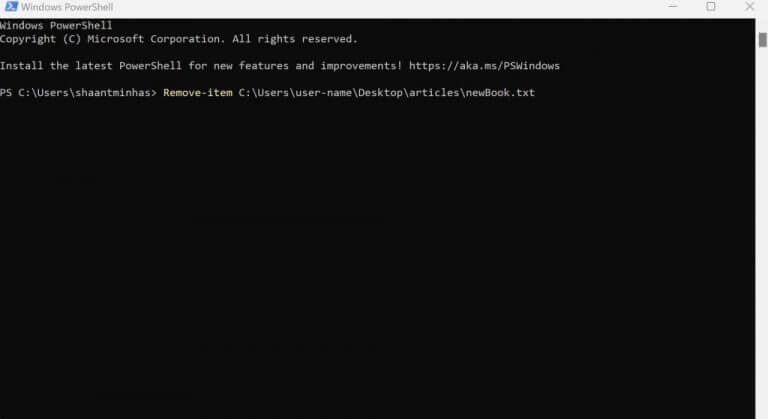
For instance, we can show you how the deletion would work with specific parameters. Here’s how:

Remove-item C:\Users\user-name\Desktop\articles\newBook.txt

windows powershell

The above command deletes a .txt file called ‘newBook’ located at the desktop. Here, we’ve used a few of the parameters described in the command above. You can replace the file or folder just like in the command above, and you’ll be able to delete the files you’d want to.

Moreover, if you’re looking to remove hidden files or folders, then simply add in the -Force parameter, and you’ll be good to go. Here’s how:

Remove-Item C:\Program Files\VLC -Force

Deleting multiple files in a single go

So, that’s how you can delete your files with the PowerShell. But that’s not all. With the help of PowerShell cmdlets, you can also remove multiple files at once. Here’s how:

Remove-item file-path1, file-path2, file-path3

Type in the above command in your PowerShell and the specified files will be deleted. Here, you simply have to enter the specific file paths in place of file-path1, file-path2 and file-path3, and you’ll be good to go. You can apply the same method for the getting rid of multiple folders, and by the end of it, you’ll be done.

Deleting your files and folders using PowerShell

Removing your Windows files and folders doesn’t have to be difficult. As we saw above, you can remove your files and folders with Windows PowerShell without any troubles. But, as we’d mentioned right at the beginning, your Windows PowerShell is a powerhouse of tools and accessibility waiting to be discovered and used. So, don’t stop here, and keep learning more about the PowerShell.

Share This Post:

Share this article:
Tags:
PowerShell Windows 10 Windows 10 Howto Windows 11 Windows 11 How To
Previous Article Microsoft Slowing Down Hiring Across Windows, Teams, Office Next Article Microsoft Confirms Details on Keystone Xbox Streaming Stick

Related Articles

1Password Windows 10 Edge extension coming soon » On MSFT

March 1, 2026

Windows 10: How to set your default apps for email, web browser, and more

March 1, 2026

Windows 10: How to enable the new Edge rendering engine in Internet Explorer 11

March 1, 2026

Leave a Comment Cancel reply

Your email address will not be published. Required fields are marked *

Recent Posts

  • New multimedia-focused application in Office 15?
  • New Mozilla Firefox 5 features revealed
  • New migration software will move files and settings from Windows 7 to Windows 8
  • New Microsoft video feature shows HoloLens capture in action
  • New Microsoft Technology Center Opens in Detroit

Recent Comments

  1. A WordPress Commenter on Hello world!

Archives

  • March 2026
  • December 2022
  • November 2022
  • October 2022
  • September 2022
  • August 2022
  • July 2022
  • June 2022
  • May 2022
  • April 2022
  • March 2022
  • February 2022
  • January 2022
  • December 2021
  • November 2021
  • October 2021
  • September 2021
  • August 2021
  • July 2021
  • June 2021
  • May 2021
  • April 2021
  • March 2021
  • February 2021
  • January 2021
  • December 2020
  • November 2020
  • October 2020
  • September 2020
  • August 2020
  • July 2020
  • June 2020
  • May 2020
  • April 2020
  • March 2020
  • February 2020
  • January 2020
  • December 2019
  • November 2019
  • October 2019
  • September 2019
  • August 2019
  • July 2019
  • June 2019
  • May 2019
  • April 2019
  • March 2019
  • February 2019
  • January 2019
  • December 2018
  • November 2018
  • October 2018
  • September 2018
  • August 2018
  • July 2018
  • June 2018
  • May 2018
  • April 2018
  • March 2018
  • February 2018
  • January 2018
  • December 2017
  • November 2017
  • October 2017
  • September 2017
  • August 2017
  • July 2017
  • June 2017
  • May 2017
  • April 2017
  • March 2017
  • February 2017
  • January 2017
  • December 2016
  • November 2016
  • October 2016
  • September 2016
  • August 2016
  • July 2016
  • June 2016
  • May 2016
  • April 2016
  • March 2016
  • February 2016
  • January 2016
  • December 2015
  • November 2015
  • October 2015
  • September 2015
  • August 2015
  • July 2015
  • June 2015
  • May 2015
  • April 2015
  • March 2015
  • February 2015
  • January 2015
  • December 2014
  • November 2014
  • October 2014
  • September 2014
  • August 2014
  • July 2014
  • June 2014
  • May 2014
  • April 2014
  • March 2014
  • February 2014
  • January 2014
  • December 2013
  • November 2013
  • October 2013
  • September 2013
  • August 2013
  • July 2013
  • June 2013
  • May 2013
  • April 2013
  • March 2013
  • February 2013
  • January 2013
  • December 2012
  • November 2012
  • October 2012
  • September 2012
  • August 2012
  • July 2012
  • June 2012
  • May 2012
  • April 2012
  • March 2012
  • February 2012
  • January 2012
  • December 2011
  • November 2011
  • October 2011
  • September 2011
  • August 2011
  • July 2011
  • June 2011
  • May 2011
  • April 2011
  • March 2011
  • February 2011
  • January 2011
  • December 2010
  • November 2010
  • October 2010
  • September 2010

Categories

  • Announcements
  • Deals
  • Developer
  • Editorial
  • Feature
  • Feature stories
  • Hero-post
  • Hotdeals
  • How-to
  • Latest news
  • Microsoft / office 365
  • News
  • Office 365
  • Onpodcast
  • Opinion
  • Our featured post
  • Polls
  • Review
  • Reviews
  • Uncategorized
  • Videos
OnMSFT.com

OnMSFT.com covers Microsoft news, reviews, and how-to guides. Formerly known as WinBeta, we have been your source for Microsoft news since 1998.

Categories

  • Windows
  • Surface
  • Xbox
  • How-To
  • OnPodcast
  • Gaming
  • Edge
  • Teams

Recent Posts

  • New multimedia-focused application in Office 15?
  • New Mozilla Firefox 5 features revealed
  • New migration software will move files and settings from Windows 7 to Windows 8
  • New Microsoft video feature shows HoloLens capture in action
  • New Microsoft Technology Center Opens in Detroit

Quick Links

  • About OnMSFT.com
  • Contact OnMSFT
  • Join Our Team
© 2010–2026 OnMSFT.com LLC. All rights reserved.
About OnMSFT.comContact OnMSFT